Admins can create a new static page by navigating to admin > Content > Pages. Click the Create Page button.
Add / Edit Title
Type the title for the page in the Title field. If you want the title to display (as an h1 header) on the page keep the "show title on page" button checked. Otherwise, You can uncheck to hide the title (you may want to do this if you opt to use the hero section below).
Change the URL of a page
The URL slug will be automatically created to reflect the title. You can edit the url at any point (lower-case, no spaces or special characters).
Hero Configuration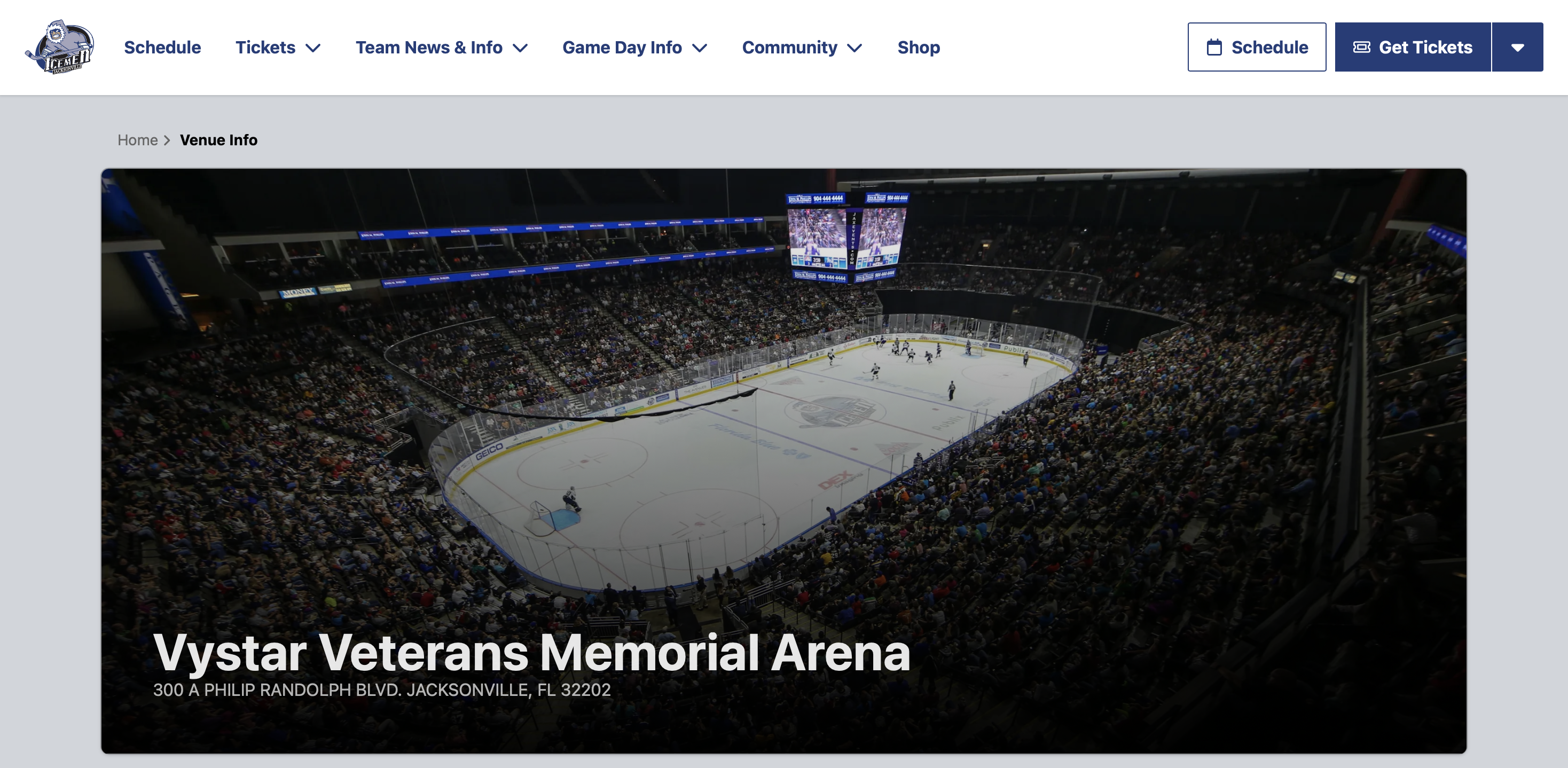
You may opt to display a hero image / title on a static page. If you do not want to display a hero image simply leave these fields blank. Images are responsive in nature, but will be centered when scaled (Ratio: 21x9, Recommended minimum: 5761x2469). If you add a Title or Description a black gradient will appear near the bottom of the image to ensure there is enough contrast between the image / text to be legible.
Add a Sponsor to a Static Page
If you want to display a sponsor logo on a static page simply select the sponsor from the dropdown. If you need to add a sponsor to the system you may do so in the Sponsors section of the admin panel.
Add a New Module to a Static Page
When you first create a new static page there will already be a WYSIWYG module present as a default. To add a new module just select the desired module from the Add Module drop down.
By default, modules may be closed. To expand & work on a module click on the + symbol next to the module.
You can move content modules up & down by clicking on the move up / move down buttons (make sure you save the page after you reorder a module).
Publish / Unpublish a Static Page
To publish a static page click the Publish Now checkbox. You may also opt to schedule the publish of a page for a specific day/time. To unpublish a page simply uncheck the box.
Additional Modules on Static Pages
To edit additional modules, navigate to the Additional Modules tab when editing a Static Page.
Teams may opt to show additional modules under the main content on Static Pages. There is a global setting (under Configuration > Pages Configuration) for all static pages. Teams may choose to always display a newsletter subscription module, an ad module, or upcoming events near the footer of all pages.
To accept the global settings for all static pages you don't have to do anything. If you would rather choose modules for a specific page you can deselect the checkbox & add modules as you would on the homepage.
Update Metadata (SEO)
Updating the Metadata for every page is essential for the optimization of your website on search engines and on social media. You can control the way each page is presented on a SERP (search engine results page) and when a link is shared on social media.
To update the meta title & description navigate to the Meta tab while editing a static page.
Tip: If you have recently updated the title or description for a page & it is not appearing on Facebook you can use the Sharing Debugger tool to initiate a new crawl of your page. Google is a bit slower, but you can submit changes via Search Console.